
ApproveCart docs
Custom teams
Custom teams give regular Shopify customers shared purchasing policies and assigned approvers. They use the regular store catalog and do not require Shopify Companies.
1. Enable custom teams
On the dashboard, complete Choose your purchasing accounts and select Custom Teams only or B2B Companies & Custom Teams. Confirm with Save account types. Later, change the selection in Settings → Supported accounts.
Both Starter and Growth support merchant-managed custom teams. New customer accounts, the storefront cart integration, and active checkout protection are required for the complete workflow. Follow the activation steps before your first test.
2. Create a team
- Open Purchase approvals to reach Purchase approval setup.
- In Custom teams or Companies & custom teams, choose Create custom team.
- Enter the team name. The Manage dialog opens after creation.
3. Add an approver and buyers
- Choose Add customer.
- Select Existing Shopify customer and search by name or email, or select Create Shopify customer and enter the email and optional name.
- For the first approver, enable Can approve purchases.
- Choose whether to Send member notification email, then add the customer.
- Add the other team members as buyers or approvers.
4. Set the team policy
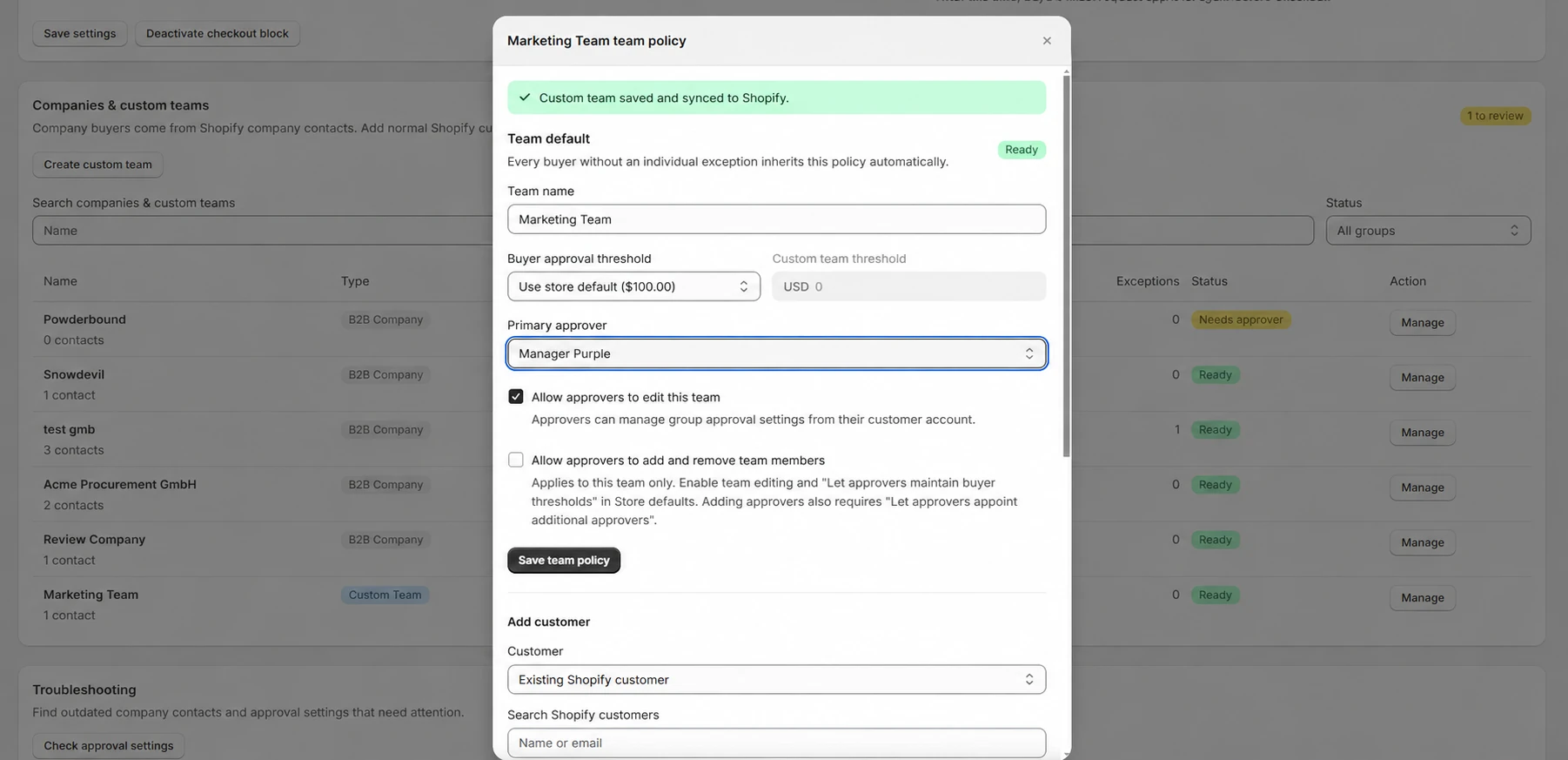
Choose a primary approver and a team approval threshold, then select Save team policy. A team can inherit the store default, use a custom threshold, or have no threshold trigger. Under Team customers → Edit, set an individual buyer threshold or a different assigned approver.
The effective threshold follows buyer override → team policy → store default. A subtotal greater than the threshold requires approval; a matching Growth rule can also require approval. See spend limits and approval rules.
Active approvers can make their own purchases without approval. They do not need to submit a request to themselves.
5. Open the team in customer accounts
Members sign in through Shopify's new customer accounts. In Purchase approvals, choose View Team to see the team policy and buyer settings. Buyers can view their settings; approvers can edit them when self-management is enabled.
Personal requests and assigned approvals remain in Purchase approvals. A customer with a separate B2B company membership can select the relevant group by name; each group's permissions remain separate.
Optional: enable approver self-management on Growth
- In Store defaults, enable Let approvers maintain buyer thresholds.
- In the team's policy, enable Allow approvers to edit this team.
- To allow membership changes, also enable Allow approvers to add and remove team members and save the team policy.
- To let approvers add other approvers, also enable Let approvers appoint additional approvers in the store settings.
Authorized approvers can use Team members → Add member or Remove member in their customer account. Adding a member requires the exact email address; a Shopify customer is created if needed. Approvers do not browse the store's customer directory.
The last active approver cannot be removed. An approver can remove themselves when another active approver remains.
6. Test the complete flow
- Sign in as a team buyer and build a cart in the shop currency above the effective threshold.
- Request approval and confirm the assigned approver can open it in their customer account.
- As the approver, review the pending cart, save any edits, and approve it.
- Return as the buyer, restore the final approved cart, and confirm checkout can proceed.
- Change a quantity after approval and confirm the changed cart requires a new approval.
- Confirm request and decision notifications arrive for both users.
Membership changes and deletion
Changes to roles, active memberships, approver assignments, or approval policy can withdraw affected open requests and approvals. Renaming a team or saving unchanged settings preserves approvals. Adding an unrelated member without changing the primary approver preserves other members' approvals.
Use Remove customer to remove a member. The customer then leaves the team approval context. To delete a team, use Manage → Delete custom team and confirm. Shopify customer records, orders, and request history remain; open approvals are withdrawn.
If the app reports a checkout-protection synchronization failure, complete the synchronization or retry the deletion before relying on the changed configuration.
Current scope
- One active custom team per customer and shop. A separate Shopify B2B membership can coexist.
- Custom teams use the regular store catalog and shop currency. No currency conversion is added for Shopify Markets.
- B2B catalogs, company locations, special B2B pricing, and payment terms belong to Shopify B2B companies.
- General product, collection, and cart rules can apply to teams. Company and location rule scopes apply to Shopify companies.
- Approval expiry uses the store-wide setting and existing plan permissions.
- Team approvals rely on signed-in customer identity. ApproveCart does not impose a shop-wide sign-in requirement on guest checkout.
For platform availability and configuration checks, see requirements.